Overview
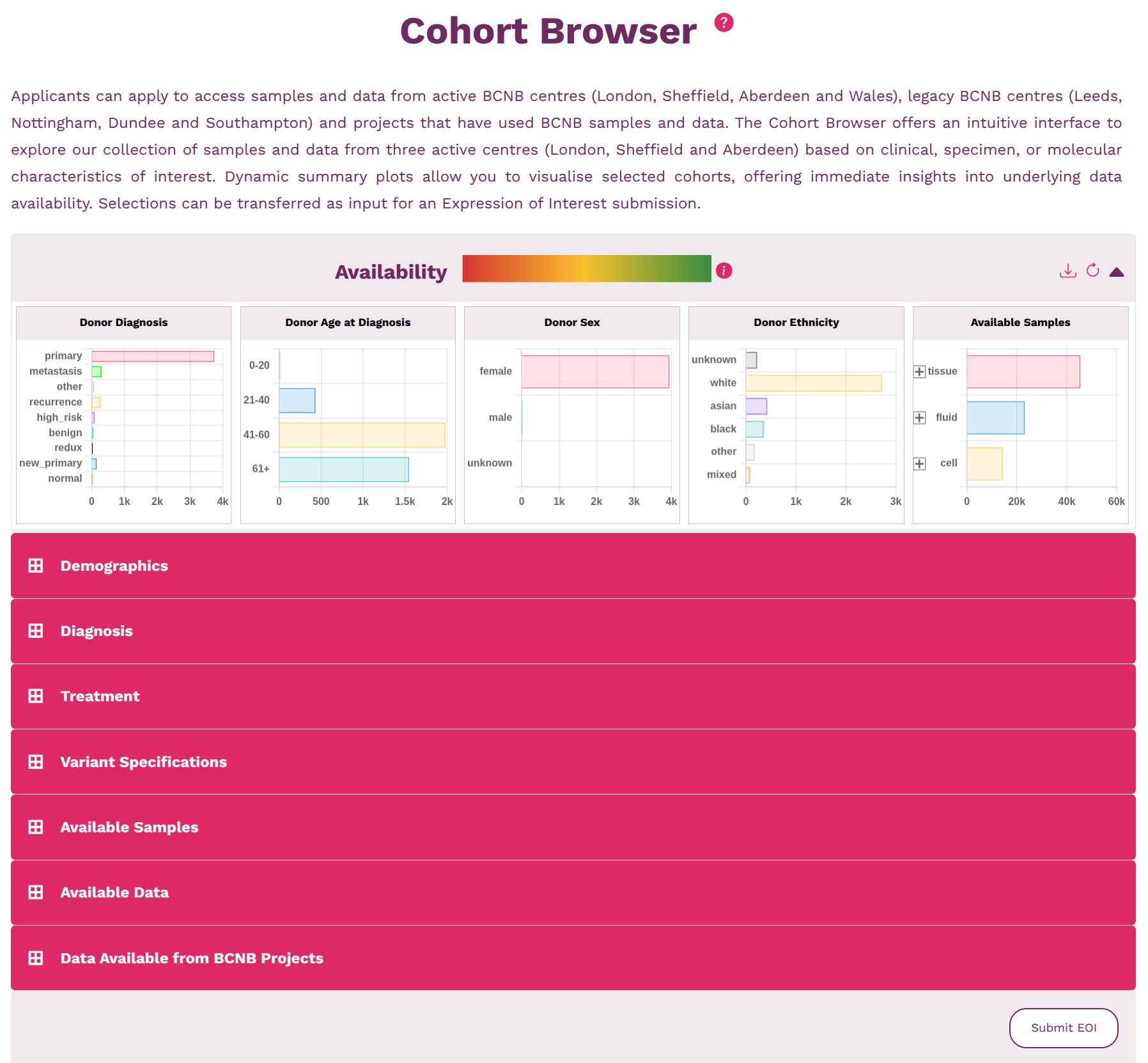
  • The Cohort Browser offers an intuitive interface to explore our collection of samples and data from three active centres (London, Sheffield and Aberdeen) based on clinical, specimen, or molecular characteristics of interest.
  • Dynamic summary plots provide a powerful way to visualise the selected cohorts, enabling you to gain immediate insights into the underlying data availability and characteristics. These visualisations help you quickly assess the distribution of samples and identify any potential gaps in the data.
  • Specific cohort selections can be saved and transferred directly into an Expression of Interest (EOI) submission for seamless data access requests.
Cohort Browser overview page
  • The summary panel updates automatically after every filter action (selection, deselection, slider change, and clear action).
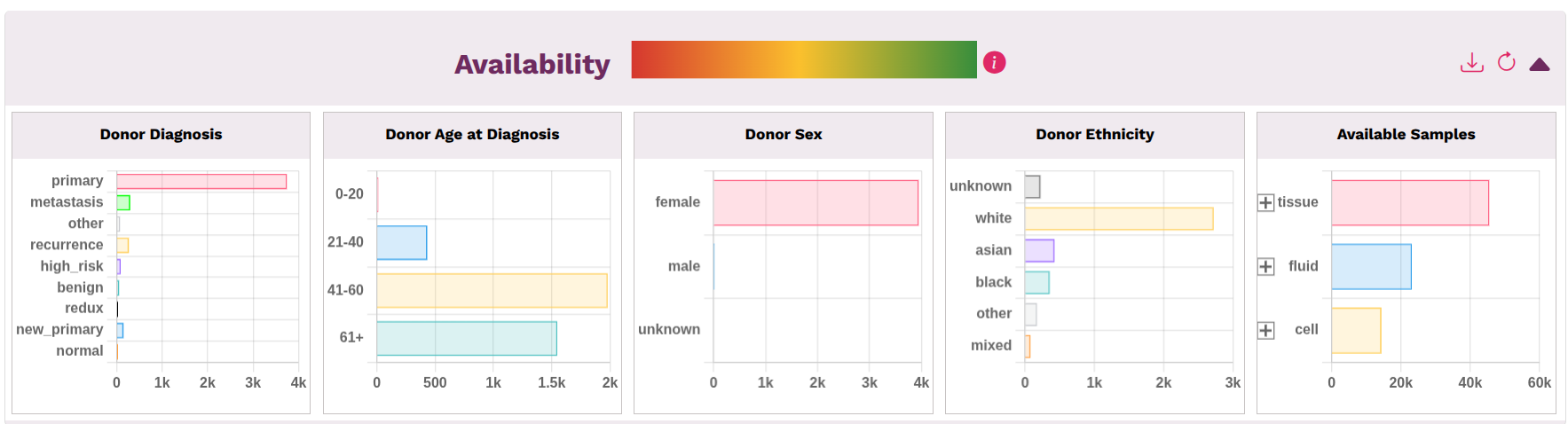
  • Availability summary panel in Cohort Browser
  • Availability: shows the percentage of available donors matching your filters. Use this to check if your cohort size is reasonable. If too small, your sample/data request may not be feasible.
  • Dynamic Summary Plots: provide visual representations of the selected cohort's characteristics. You can view the distribution of donors and samples across the cohort, e.g., donor diagnosis, donor age at diagnosis and available samples. You can have a quick visual check of the cohort composition and data availability. For example, if you are looking for a cohort with frozen tissue, you can check the "Available Samples" plot to see the distribution of sample types in your selected cohort. If you find that the majority of samples are FFPE, you may want to relax some filters to increase the number of frozen samples. Use these plots to validate that your filters are working as expected and to understand the composition of your cohort.
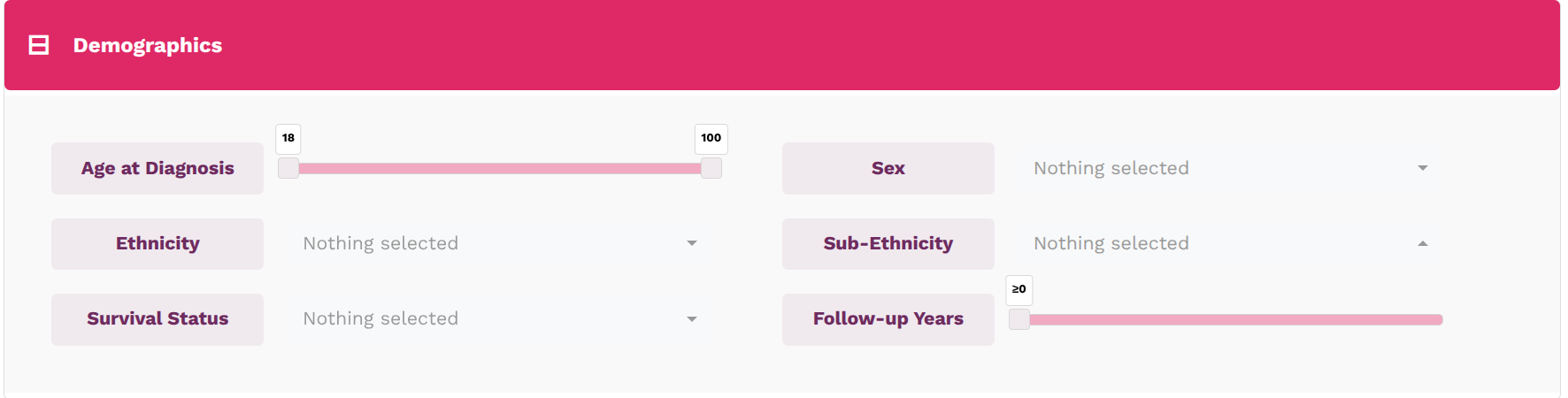
  • Demographics: define patient-level characteristics such as age, sex, ethnicity, survival status, and follow-up duration.
  • Demographics filters in Cohort Browser
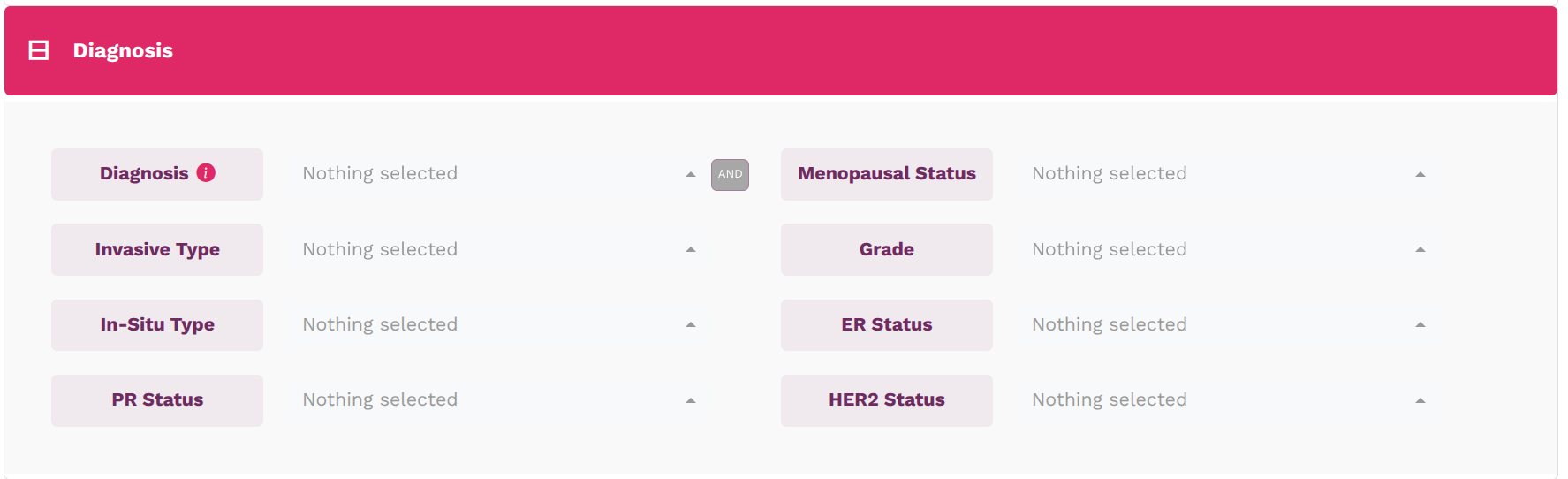
  • Diagnosis: refine by clinical phenotype, including diagnosis group, menopausal status, tumour type, grade, and receptor markers (ER/PR/HER2).
  • Diagnosis filters in Cohort Browser
  • Treatment: include or exclude therapy categories. When multiple options are selected within a filter, the cohort includes samples matching any of those options (OR logic). For example, selecting both "Adjuvant Biology" and "Adjuvant Chemotherapy" returns samples receiving either treatment. Use the AND filter to require samples matching all selected options across categories, enabling stricter cohort refinement.
  • Treatment filters in Cohort Browser
  • Variant Specifications: filter by known variant status (currently BRCA1/BRCA2).
  • Variant specification filters in Cohort Browser
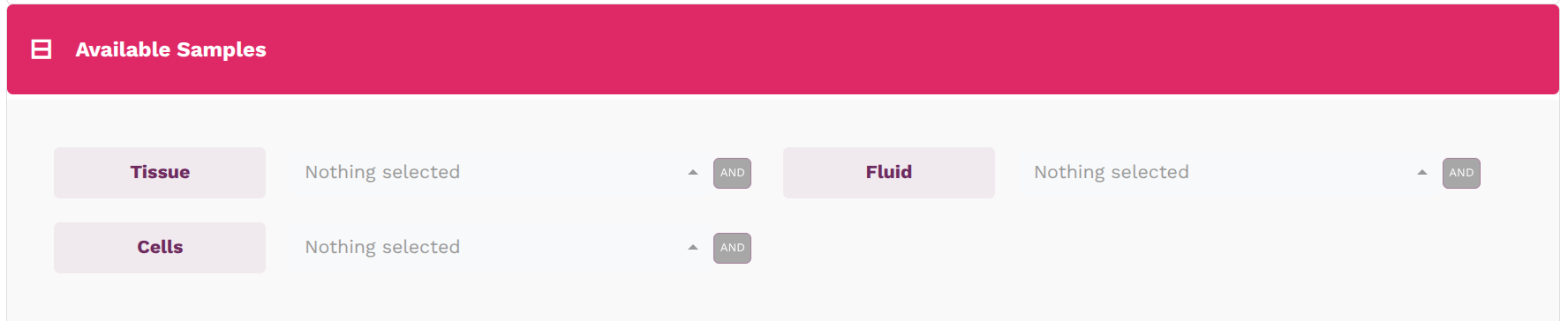
  • Available Samples: target material needed for your study (tissue/fluid/cells). For tissue samples, fresh and TMA are available upon request. If you want to check that a donor has multiple samples available for research, use the AND filter to check donor availability.
  • Available sample filters in Cohort Browser
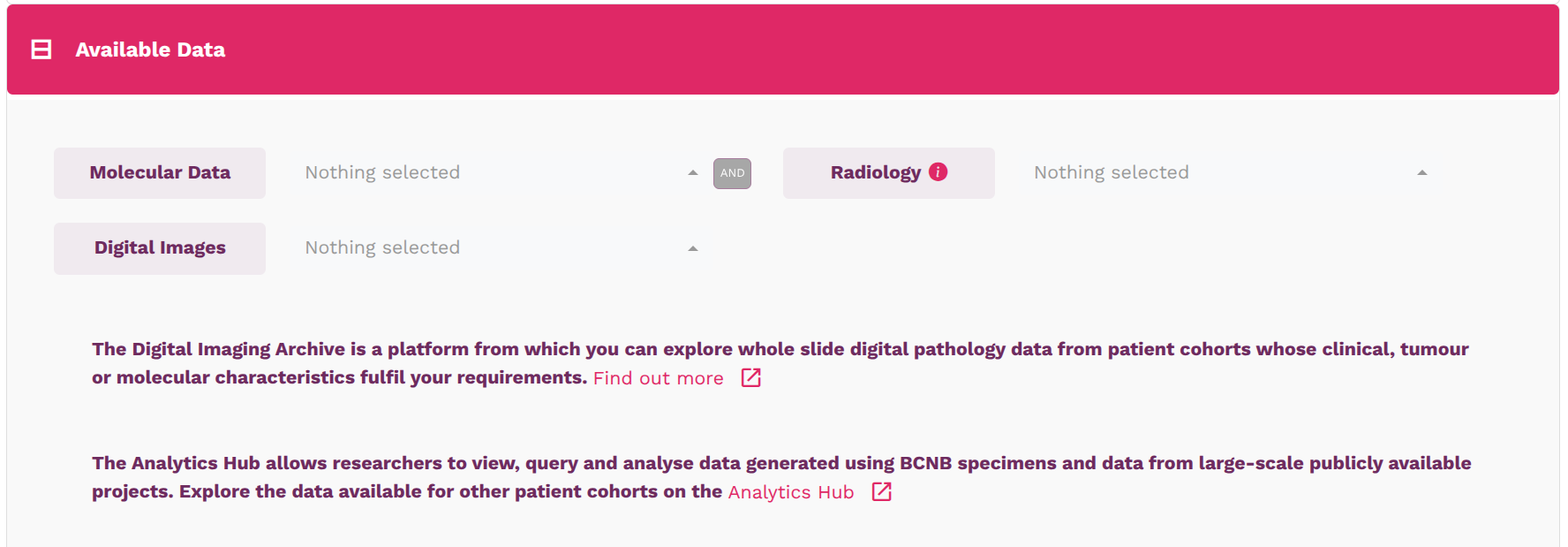
  • Available Data: we have molecular data (Genomics and Transcriptomics data), radiology images, and digital images (whole slide images) available for selection.
  • Available data filters in Cohort Browser
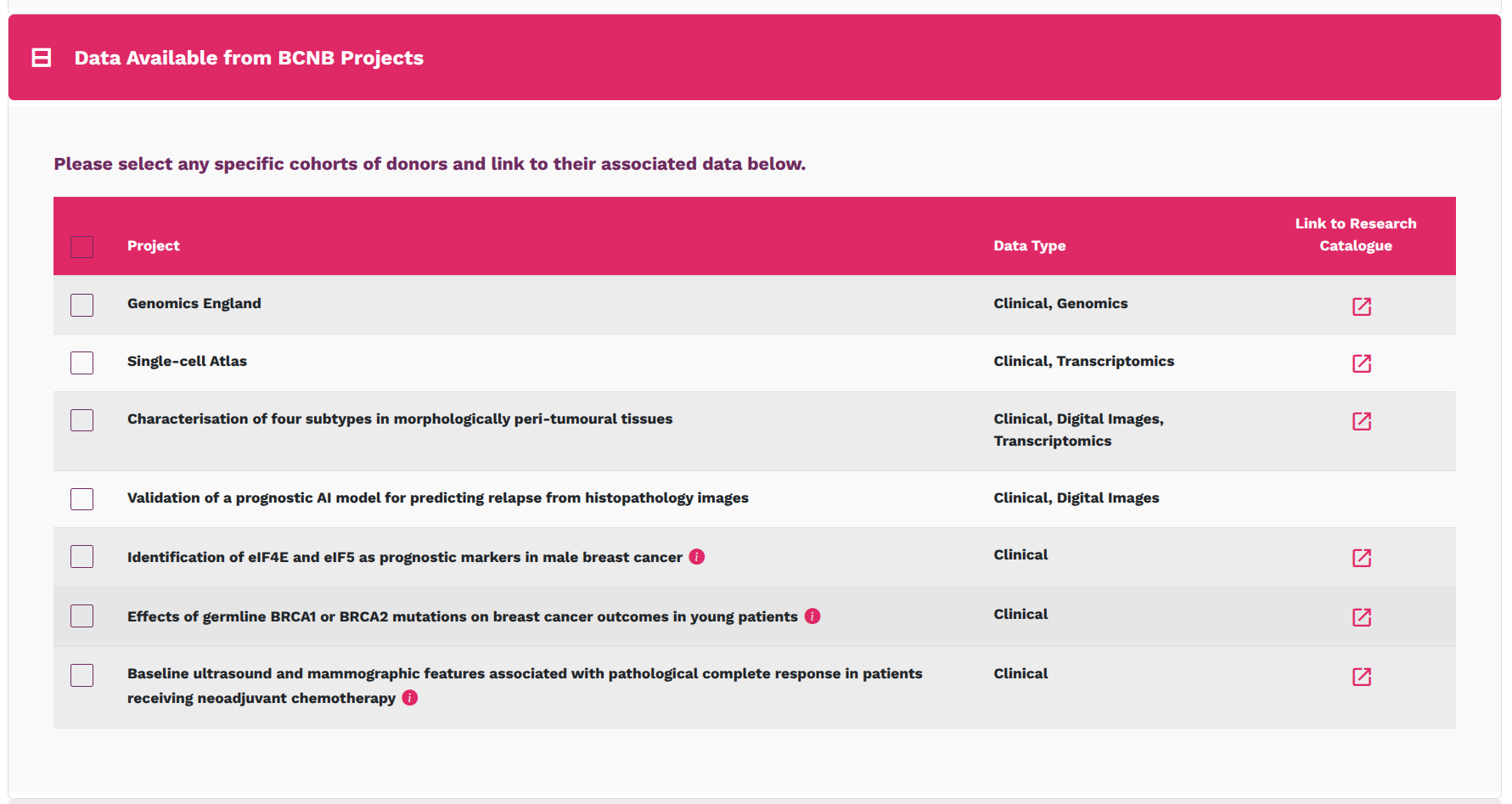
  • Data Available from BCNB projects: explore datasets derived from existing BCNB projects. You can select any project by clicking the checkbox at the front of the project for your request.
  • BCNB project filters in Cohort Browser
  • Use each section’s Clear All to reset one category while preserving all other selected criteria.
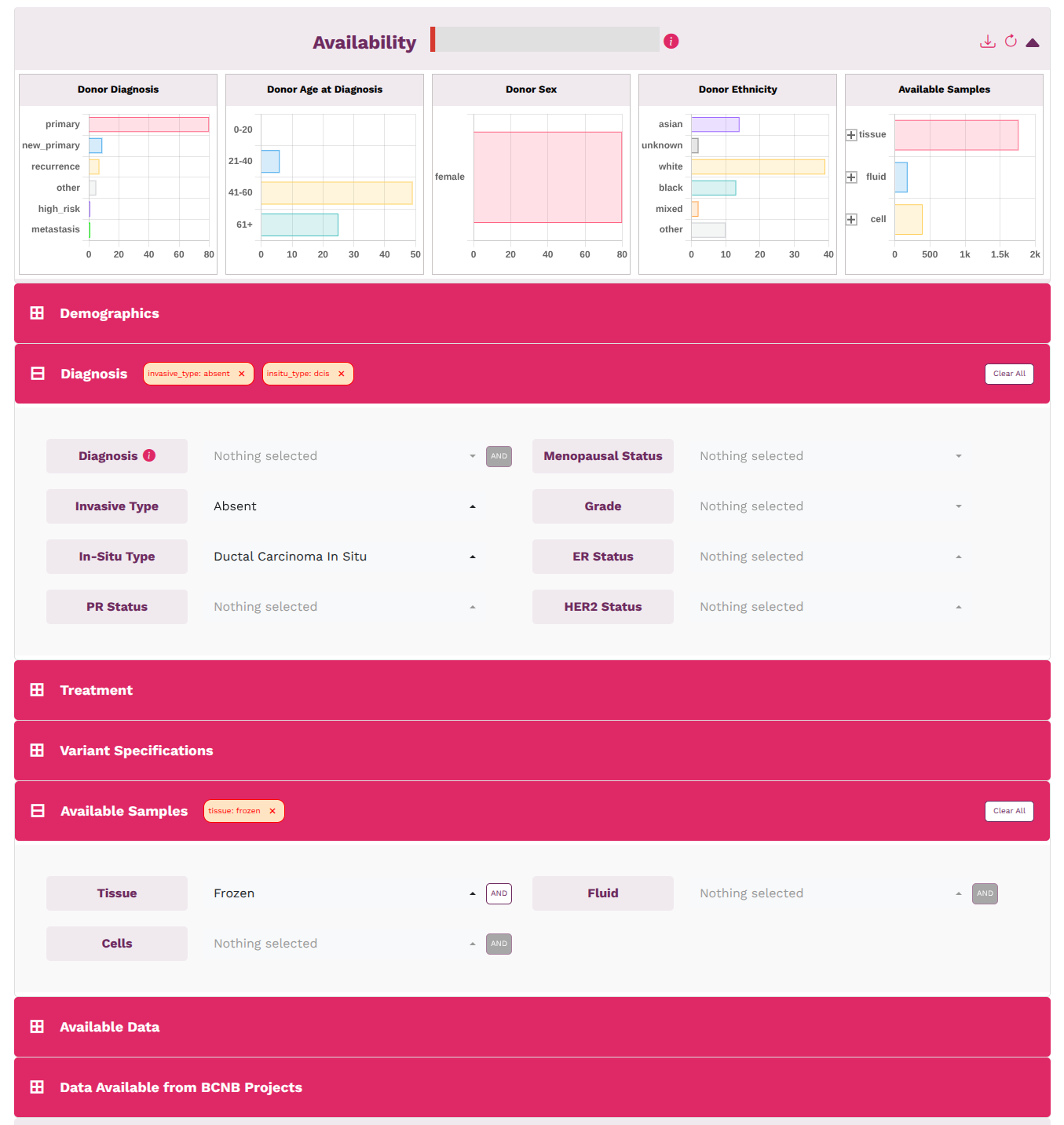
  1. Open Diagnosis and select Invasive Type: Absent, In Situ Type: DCIS.
  2. Open Available Samples and select Tissue: Frozen.
  3. Add optional filters if needed for stricter cohort definition. For example, you can add treatment filters to focus on untreated samples.
  4. Use section-level Clear All to revise one part of the query without resetting everything.
  5. Before EOI submission, confirm sample-type availability (frozen tissue), data availability, and final matched donor count.
Example 1 - Frozen Tissue from DCIS only donors
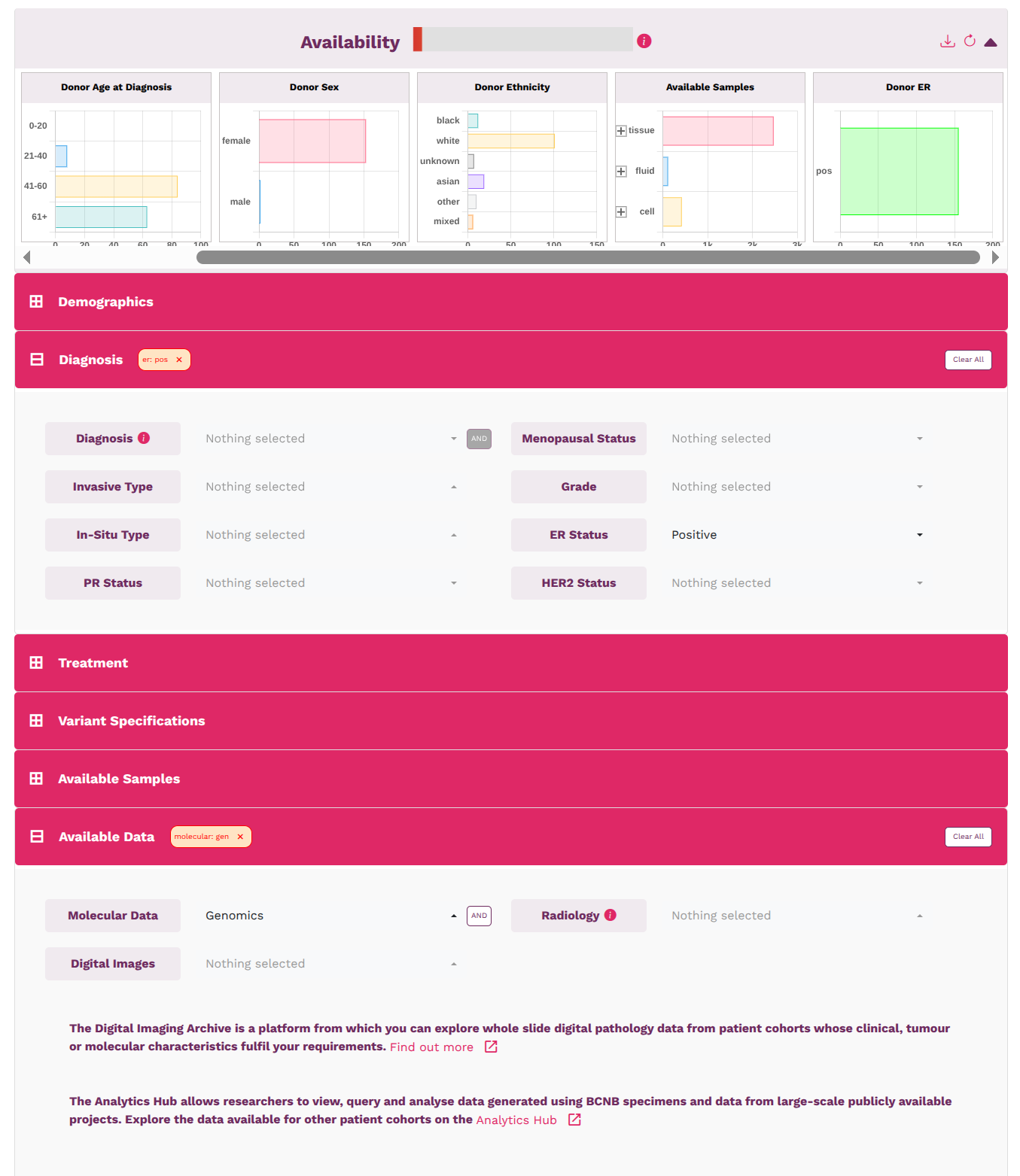
  1. Open Diagnosis and select ER: Positive.
  2. Open Available Data and select Molecular: Genomics.
  3. Add optional filters if needed for stricter cohort definition. For example, you can add treatment filters to focus on untreated samples.
  4. Use section-level Clear All to revise one part of the query without resetting everything.
  5. Before EOI submission, confirm data availability and final matched donor count.
Example 2 – Genomics data from ER+ donors

Need help? Contact the BCNB team via Contact Us.